> For the complete documentation index, see [llms.txt](https://motion-studio.mtmograph.com/llms.txt). Markdown versions of documentation pages are available by appending `.md` to page URLs; this page is available as [Markdown](https://motion-studio.mtmograph.com/ae-extension/tools/re-key-new.md).
# Re-Key (New!)
Create and save keyframe presets to apply across projects.
## Description
Create and save keyframe presets to apply across projects. Take any layer with keyframed **properties**, **Layer Styles**, and/or **Effects**, and save them to a custom "Re-Key". This Re-Key can then be applied to any other layer in any composition or project. It can also be exported to be shared with colleagues.
## Usage
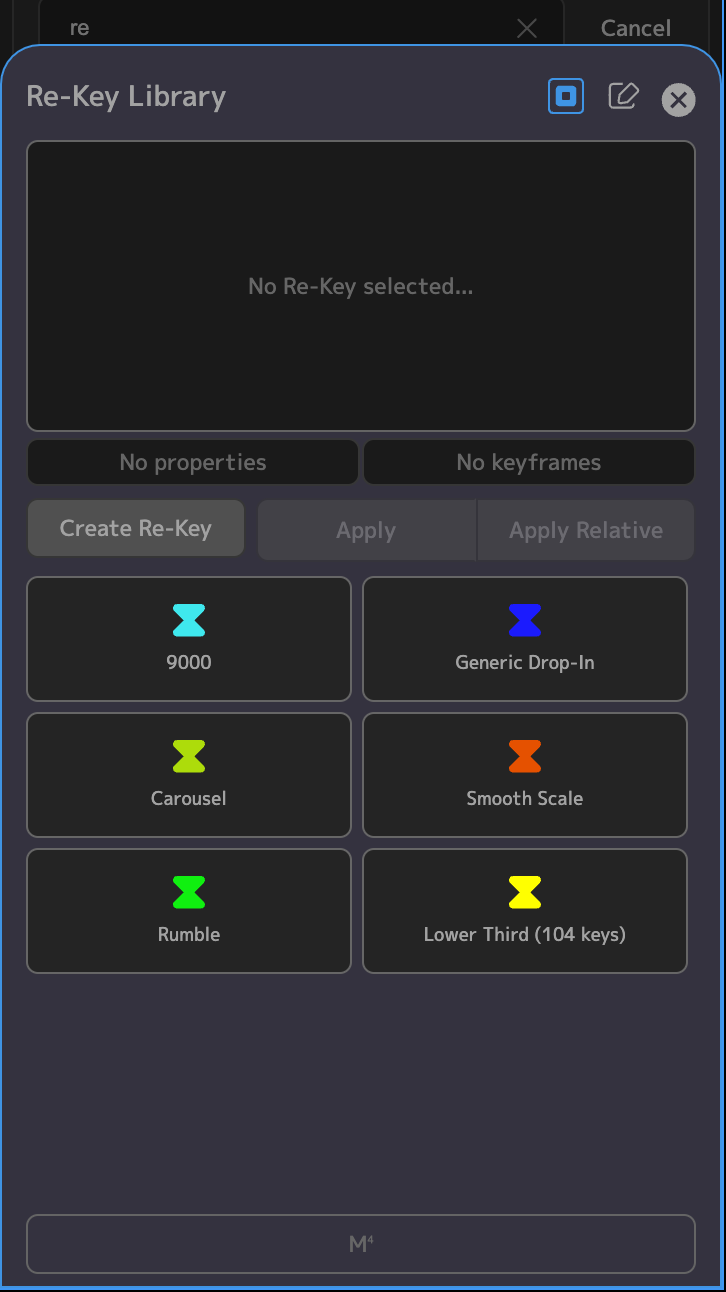
Once open, you'll see that Motion Studio comes with 6 Re-Key presets to demonstrate functionality. Feel free to use, or delete, these presets.
## Creating Re-Keys
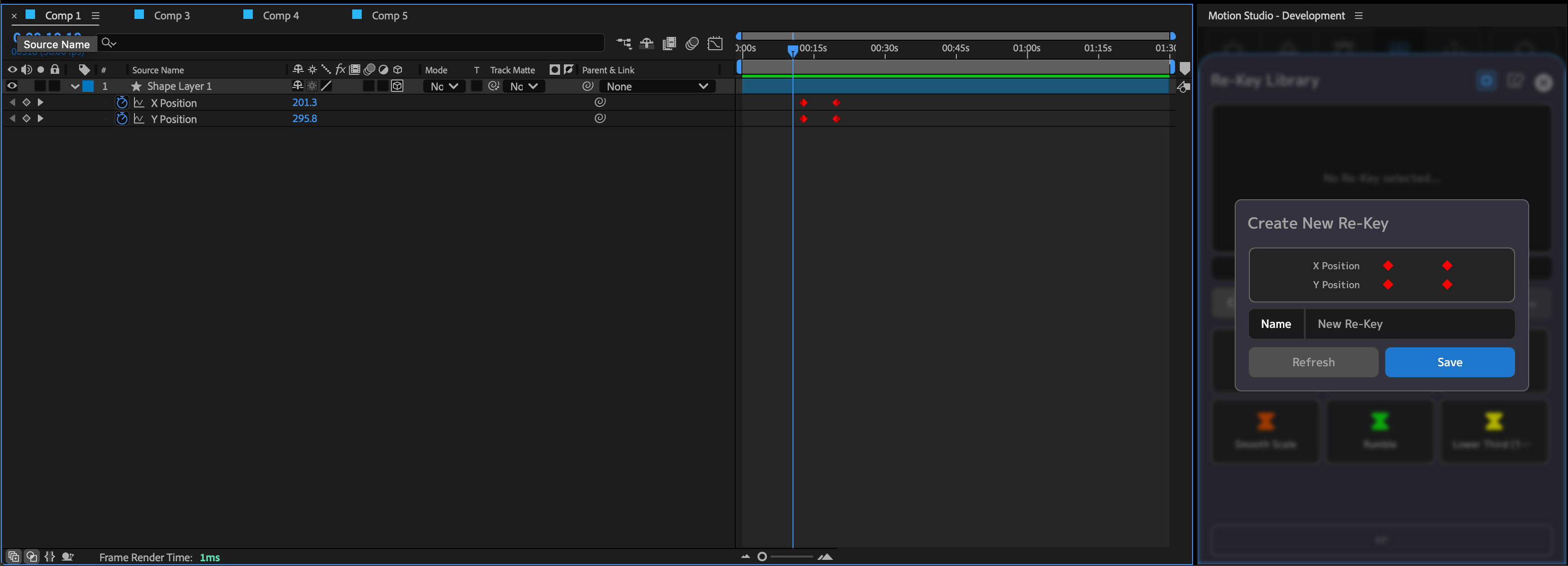
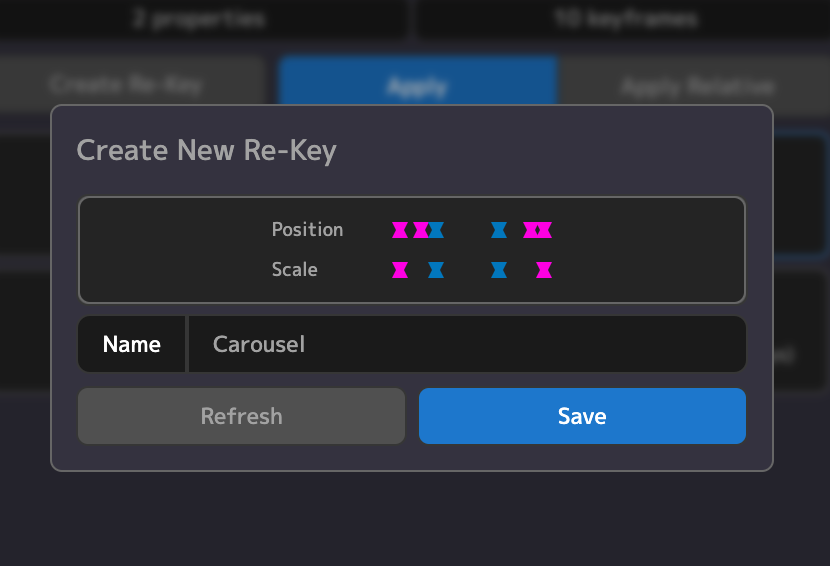
To create a Re-Key, click the "Create button". This opens a modal dialog that polls your selected keyframes. If you re-select different keyframes you can click the "Refresh" button. The selected Keyframes will be shown in the preview:
Preview selected keyframes
You can input a custom name for this Re-Key, and Save to your library. Motion Studio will auto-pick a custom Icon for your re-key as well.
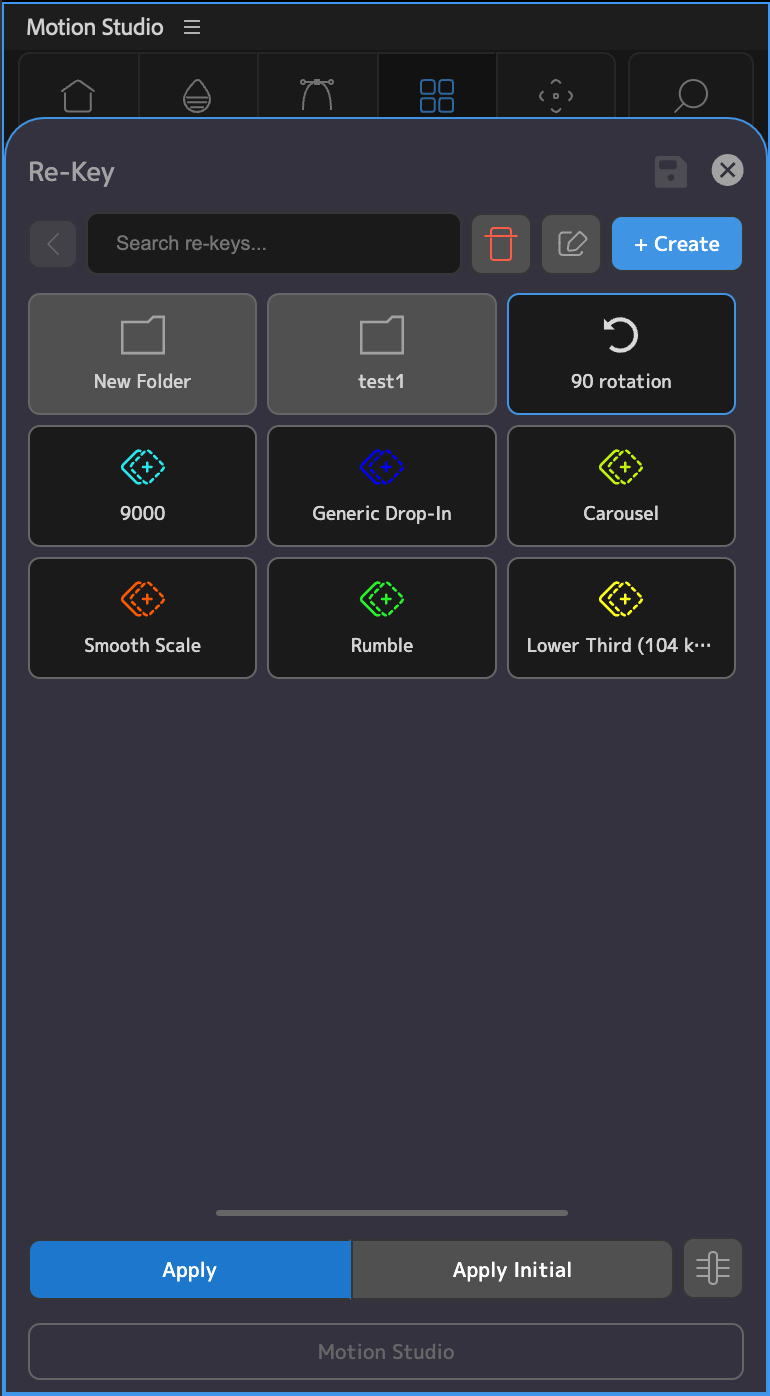
With the New Re-Key selected, you have the option to **Apply** or **Apply Initial**.
* **Apply**: Applies the saved keyframes to a new layer or layers. All of the keyframe values, easings, colors, styles etc., will be passed on. Notably, Apply will copy the keyframe values exactly as they were when they were saved.
* **Apply Initial**: This mode applies the Re-Key taking in to account the initial property values of the new layer. For example, if you have a Re-Key that rotates 90 degrees (0 -> 90), and use "Apply Initial" on a layer that is already rotated 90 degrees, then it will apply the rotation starting at 90 degrees, and the new layer will rotate from 90 to 180 degrees.
## Customizing Re-Keys
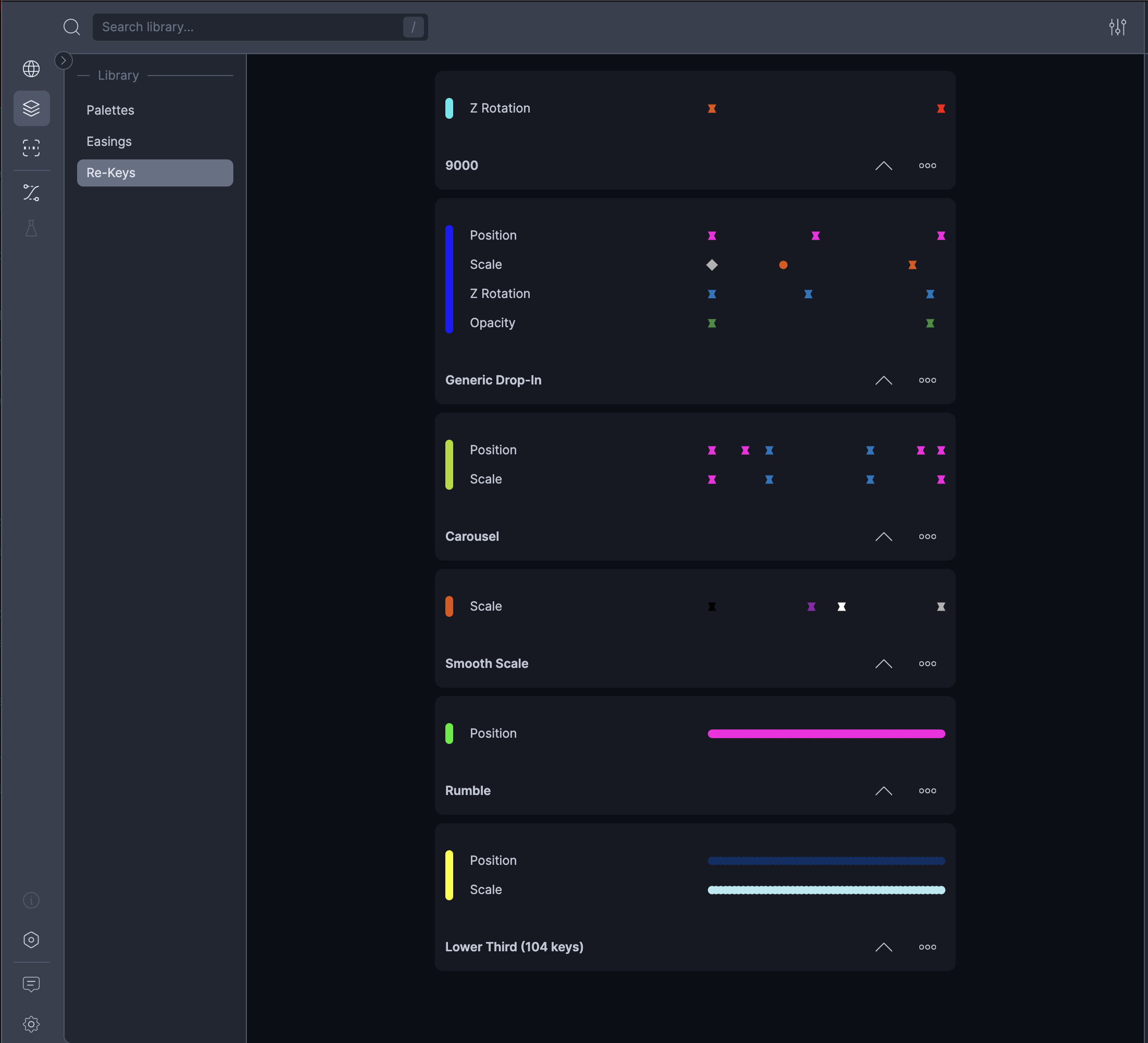
Customization of Re-Keys can be done easily in the Motion Studio Application, by clicking the Edit icon in the top-right corner.
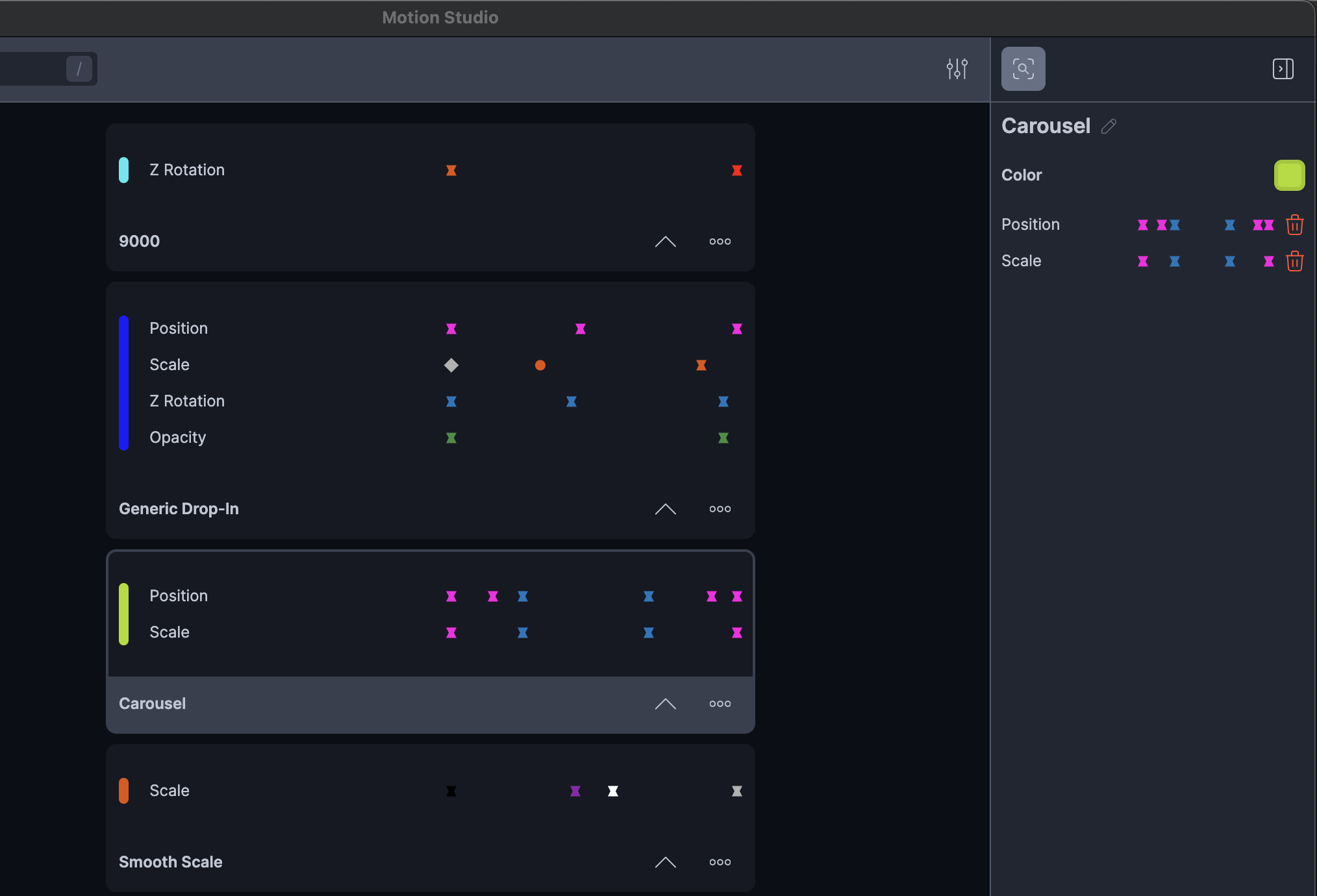
Re-Key Library
For now, you have the option to give your Re-Keys custom names, colors, and icons. Click on a Re-Key and open the side panel to customize:
Customizations
Re-Keys are also draggable, and can be rearranged.
## Adding to Mini
Re-Keys can be added to a Mini by right-clicking the Re-Key and choosing which Mini panel to add it to. Once added, you can choose to apply this Re-Key as Relative or not. You can also assign a modifier key (e.g. cmd+click) to Apply Relative.
Once in your Mini, you can one-click apply your Re-Key to any selected layer!
## Carousel Example
Let's walk through how we would create and apply a "Carousel" Re-Key.
#### 1. Animate your Carousel
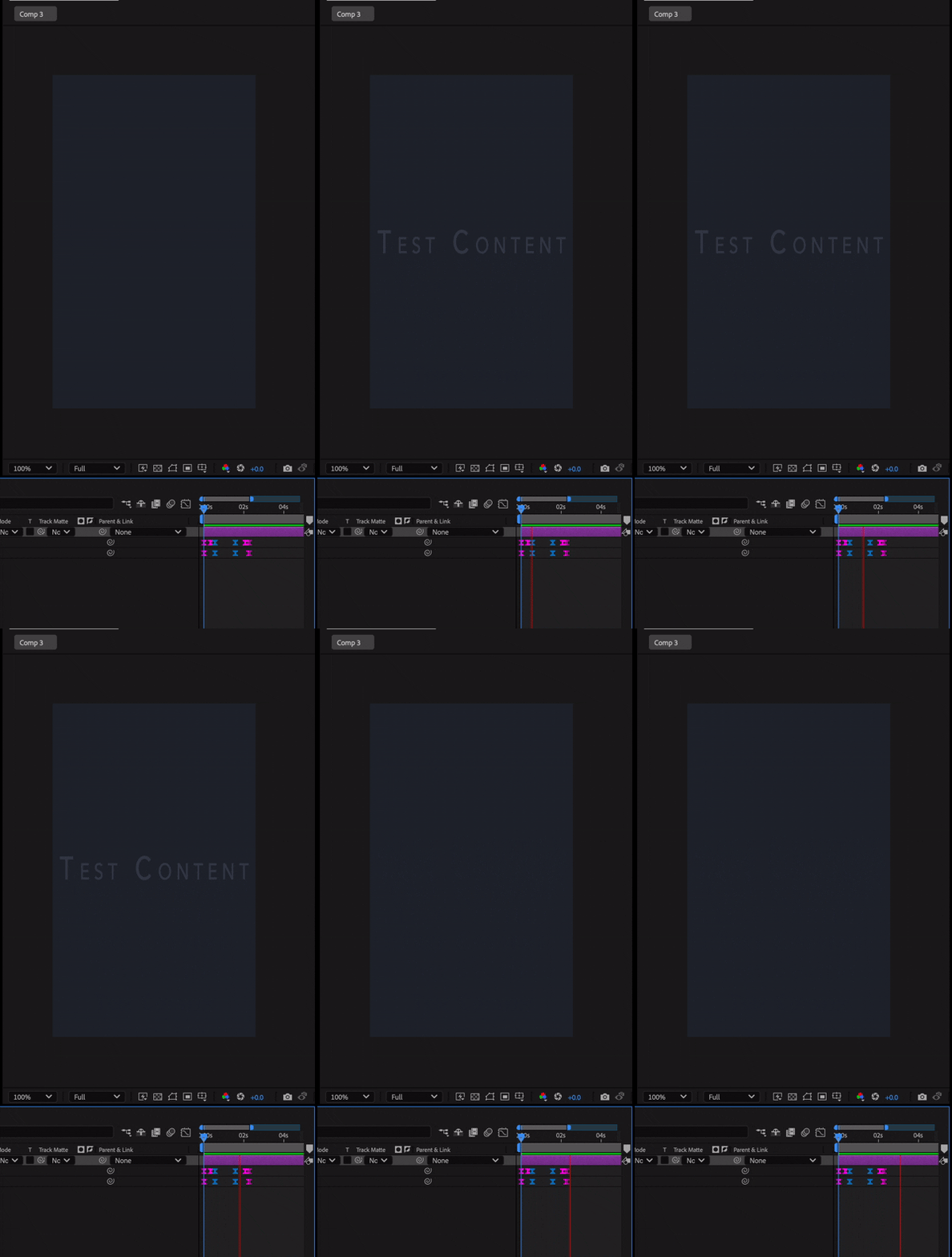
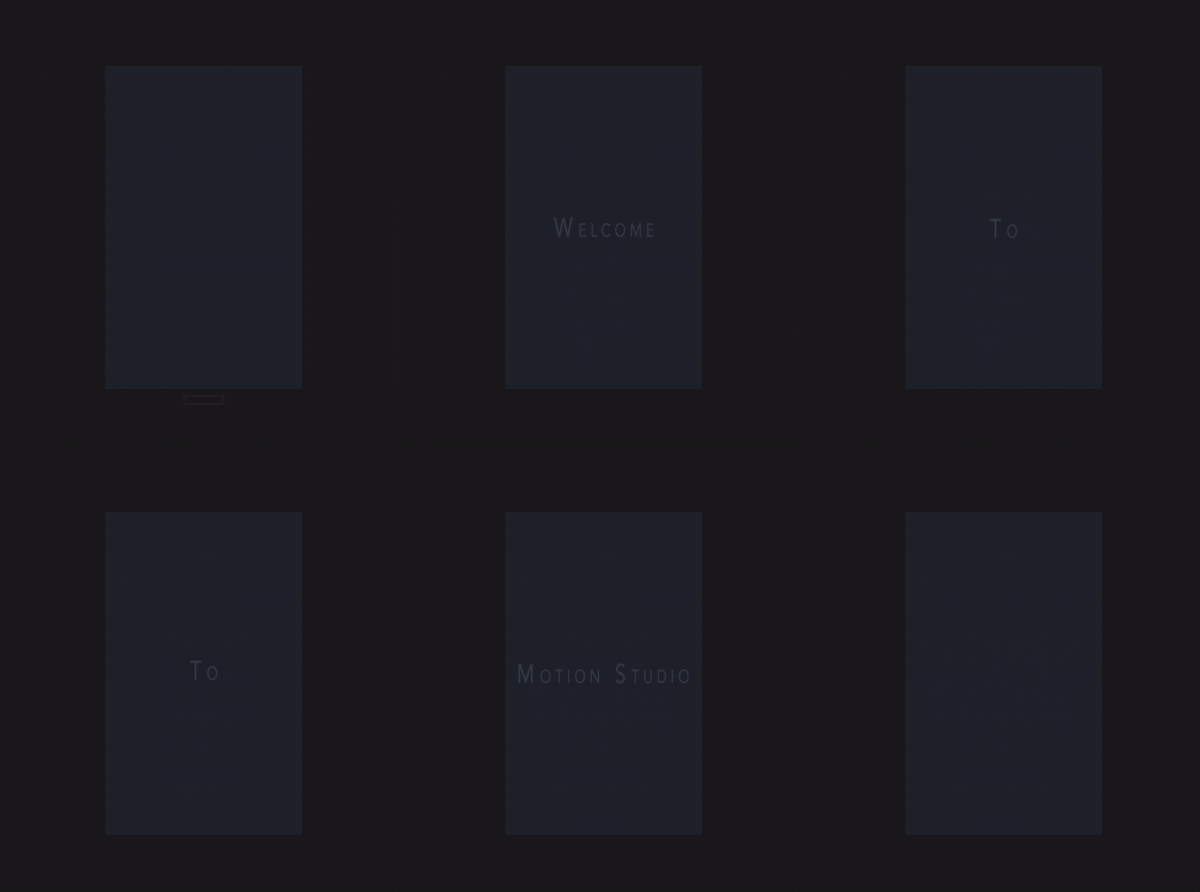
We'll add some position and scale keyframes to create a carousel effect for some text
Animated Carousel
#### 2. Save Your Re-Key
Open Re-Key with your keyframes selected, and save as "Carousel"
Save your Animation
#### 3. Set up a new project
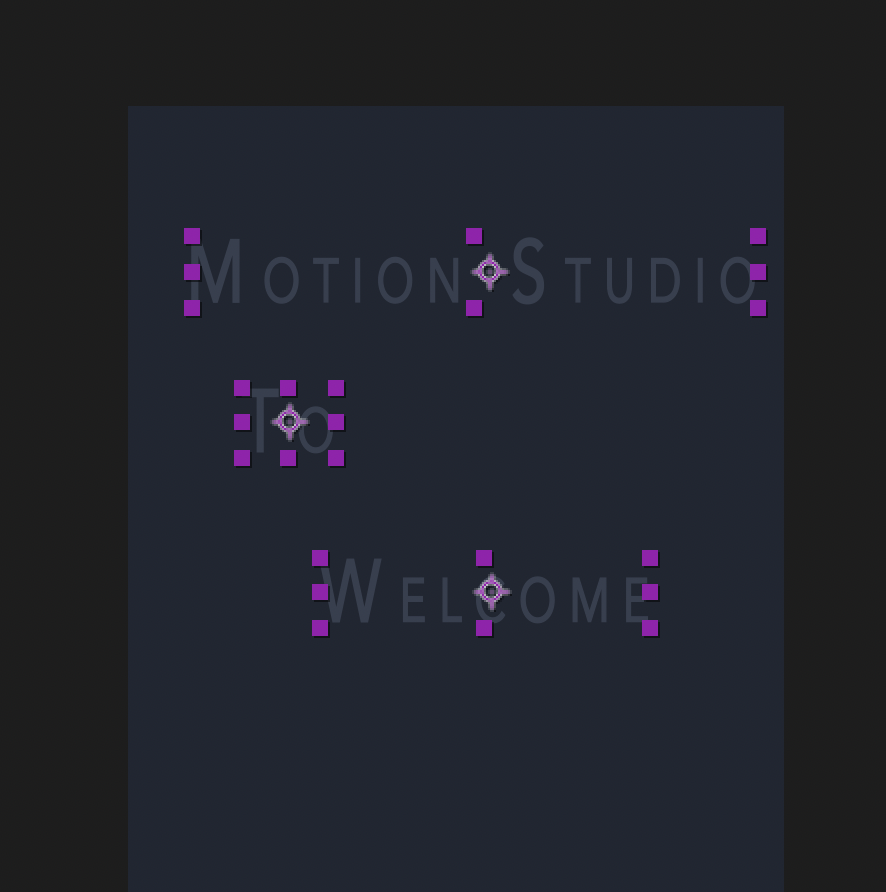
We're setting up a new project to apply the Re-Key in. Here, we'll have an animation that cycles between three different text blocks in the same carousel pattern:
Create your text layers
#### 4. Apply Carousel
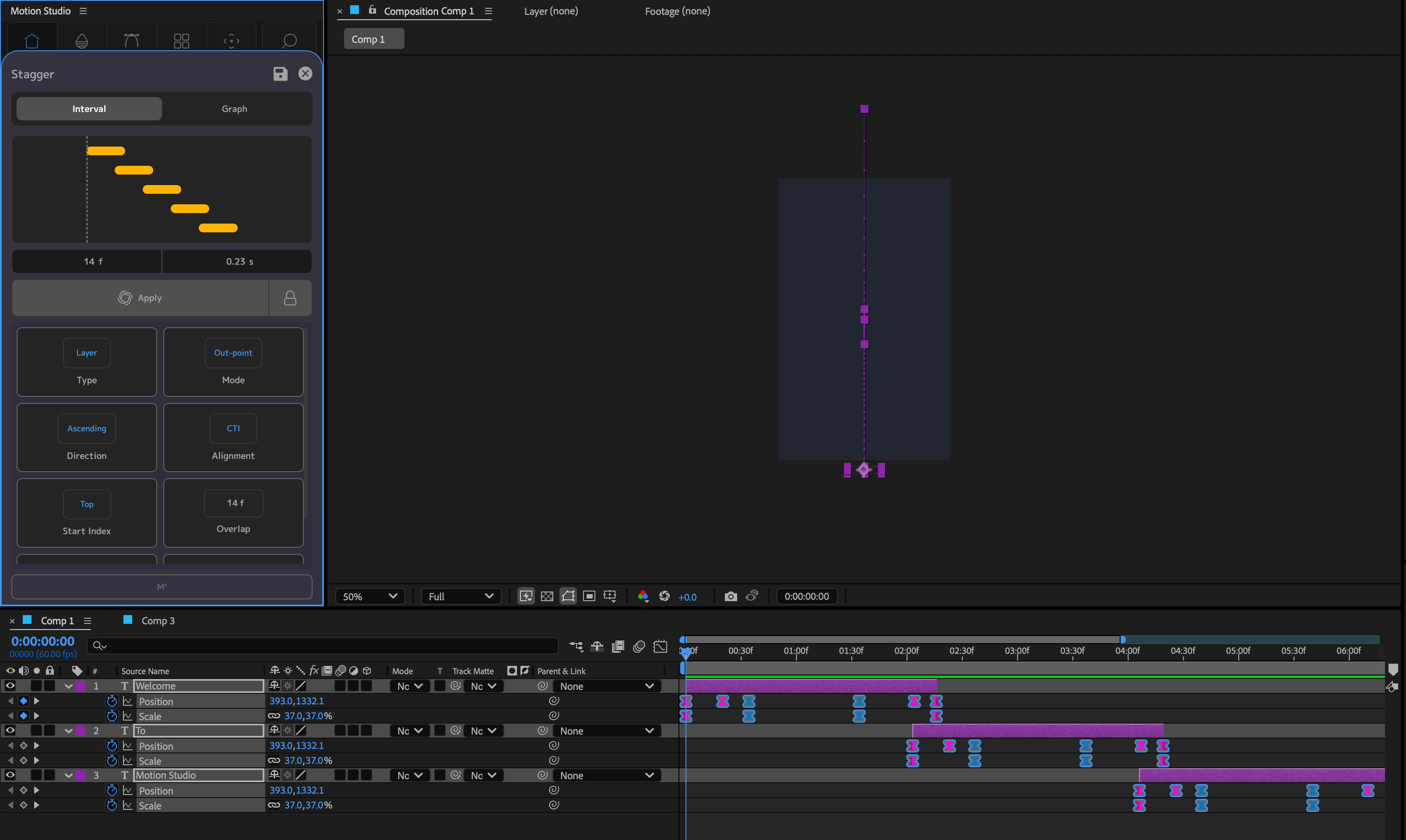
For each layer, apply the carousel Re-Key. Once applied, we can also use "Trim to Keys" to trim the layers to the in and out keyframes. Then we can use the Stagger tool to apply a short overlap between each layer: